Edit CSV files online
Editing CSV in a text editor means squinting at commas and breaking quotes. Open the file as a table instead — with sorting, filters and find and replace — and save it back as clean CSV.
- Your file never leaves your device
- Free
- No sign-up
How to edit a CSV file
1Open the CSV
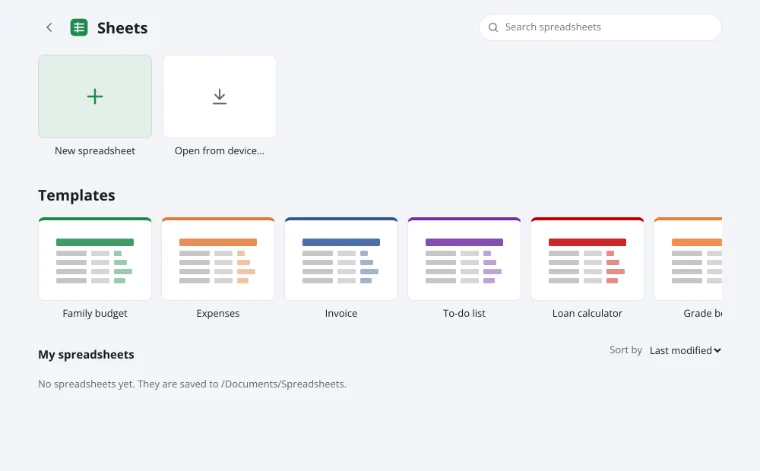
Click Open from device in the window below. Encoding and delimiter are detected for you.
2Make your changes
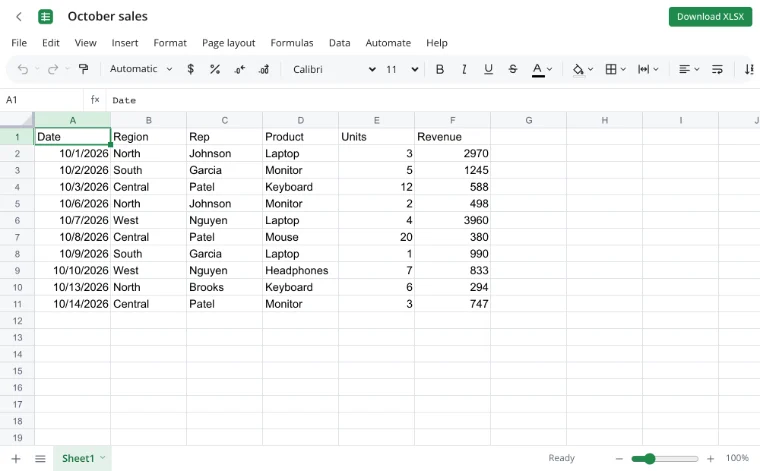
Sort, filter, find and replace, remove duplicates and blank rows, or split columns.
3Save as CSV
Choose File → Download → CSV. Fields are quoted correctly wherever they need to be.
Handy cleanup moves
Remove duplicates
Data → Data tools → Remove duplicates, comparing the columns you choose.
Split a column
Text to columns breaks names, addresses or codes apart by delimiter or fixed width.
Tidy text
Trim spaces, change case or turn text into numbers under Data tools → Text.
Find and replace
Ctrl+H, with match case and entire-cell options.
Frequently asked questions
Is my file uploaded anywhere?
No. The spreadsheet is read and written by your browser, on your device. It only reaches Zotu's servers if you choose to save it to your cloud from the full editor.
Do I need an account or a subscription?
No. The tool is free and needs no sign-up. An account only adds cloud storage, so your workbooks follow you between devices and save themselves.
Will commas and quotes inside fields break?
No. On save, any field containing the delimiter, a quote or a line break is quoted and inner quotes are doubled, per the CSV standard.
Can I choose the delimiter when saving?
The editor uses your region's default; for a specific delimiter, use the XLSX to CSV converter.
More tools
- Open an XLSX file onlineOpen XLSX, ODS or CSV files online and edit them right away: formulas, filters and charts work.
- Spreadsheet function referenceAll 560 spreadsheet functions by category — math, text, dates, lookup, statistics, finance and more — with short descriptions and a live editor to try them.
- Convert CSV to XLSX onlineConvert CSV to XLSX in your browser.
- Convert XLSX to CSVExport a sheet from an XLSX workbook to CSV with a comma, semicolon or tab delimiter.
- Convert a spreadsheet to PDFTurn an XLSX, ODS or CSV spreadsheet into a PDF with proper page breaks, headers, footers and charts — just like printing.
- Convert ODS to XLSXConvert OpenDocument spreadsheets (ODS) to XLSX with sheets, formulas, number formats and styling intact.
- Convert XLSX to ODSSave an XLSX workbook as an OpenDocument spreadsheet (ODS) with all sheets, formulas, number formats and styling.
- Convert a spreadsheet to an HTML tableTurn a sheet from XLSX, ODS or CSV into a styled HTML table with fonts, colors, borders and merged cells — ready for websites, wikis and emails.