Excel to PDF: turn a workbook into a print-ready PDF
Excel to PDF keeps the page as it was designed: choose a workbook, pick a sheet and download a PDF with charts, number formats and headers in place. Page size, orientation, margins and scaling come from the file, and the conversion runs in your browser.
- Free
- No sign-up
- A4, Letter and A3
- File stays on your device
How to convert Excel to PDF
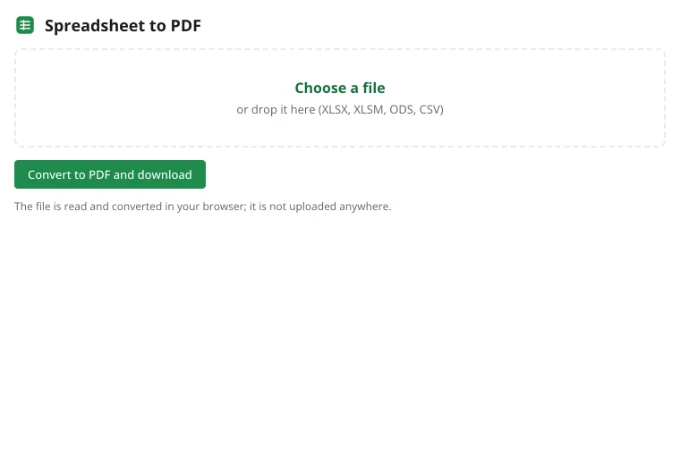
Choose a file
Drag an XLSX, XLSM, ODS or CSV file into the tool or click “Choose a file”. Files up to 100 MB are read in the browser, whether it is an invoice, a payroll summary or a grade sheet.
Pick a sheet
Choose a sheet in the “Sheet” list, or “All sheets” to put every sheet in one PDF. The preview shows the page breaks before anything is downloaded.
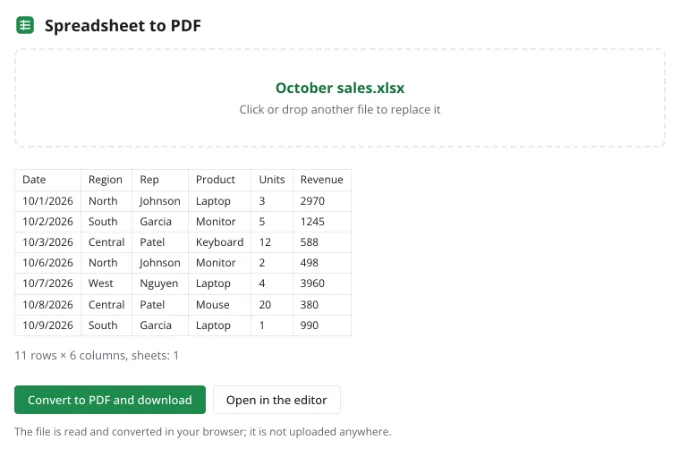
Convert to PDF and download
Click “Convert to PDF and download”. The PDF keeps the workbook's page setup: paper, orientation, margins and headers. “Open in the editor” lets you change them first.
Use cases
- An invoice to a client that opens the same on any device.
- A grade sheet for the school office, with the columns fitted to the page.
- A payroll summary for HR, with charts and totals kept in place.
- An expense report for a client, without exposing the formulas behind it.
- A packing list for an online order, printed on A4 or Letter.
How do I convert XLSX to PDF on a Mac?
Open the converter in Safari or Chrome on macOS and choose the file. There is nothing to install and no account to create: the browser reads the workbook and builds the PDF. Pick a sheet, check the preview and download.
Print settings
| Setting | What it does |
|---|---|
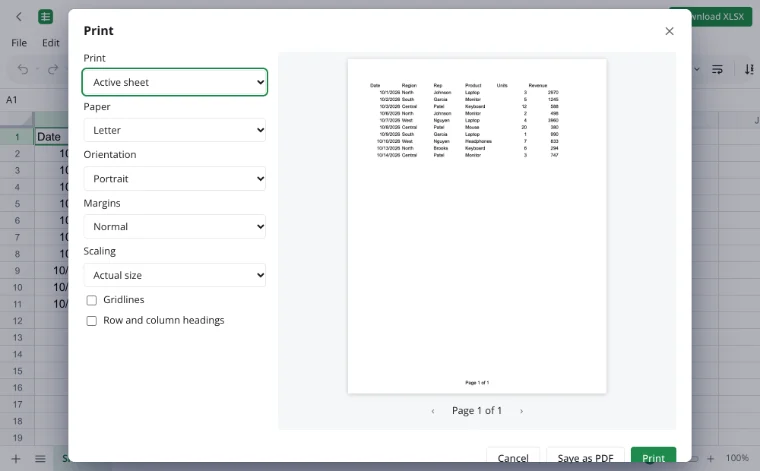
| Scaling | Fit the sheet, fit all columns, or a custom scale. |
| Repeated rows | Header rows repeat on every page. |
| Header and footer | A default “Page 1 of 3”, editable in page setup. |
| Margins | Normal, narrow or wide. |
| Orientation | Portrait or landscape, as set in the workbook. |
| Paper | A4, Letter, Legal, A3 and Tabloid. |
What the PDF keeps
Charts and pictures are drawn where they sit in the sheet, number formats and cell styles stay as designed, and header rows repeat on each page. The page breaks follow the workbook's print area and scaling, and the preview shows them before you download.
Limits
- One workbook at a time: no batch conversion.
- A PDF is a snapshot; editing it needs a PDF editor.
- The result follows the workbook's page setup, so fix the layout first.
- Files are limited to 100 MB.
Privacy
The workbook is read and the PDF built in your browser, so nothing is uploaded. A file reaches the cloud only through “Save to cloud”; cloud storage is in the EU/US under GDPR. To change the layout, open the workbook in the editor.
Frequently asked questions
Support: [email protected]
How to convert spreadsheet to PDF?
Open the converter, choose the workbook and the sheet, then click “Convert to PDF and download”. The PDF is built in your browser from the workbook's page setup, with charts, formats and headers kept. No account is needed and nothing is uploaded.
How to convert XLSX to PDF in Android?
Open the converter in Chrome on Android, tap “Choose a file” and pick the workbook. Choose the sheet and tap “Convert to PDF and download”. No app is installed, and the PDF is saved to your device.
How to Excel to PDF all sheets?
In the “Sheet” list choose “All sheets”, and every sheet goes into one PDF in workbook order. By default only the active sheet is converted, so check the list before downloading. For separate files, convert one sheet at a time.
How to Excel to PDF landscape?
Set “Orientation” → “Landscape” in the workbook's page setup, then convert. The tool uses the file's own print settings, so the PDF matches the preview. A wide table also benefits from “Fit all columns on one page”.
How to convert XLSX to PDF on Mac?
Use Safari or Chrome on macOS and open the converter page. Choose the file, pick a sheet and download the PDF. Nothing is installed, and the workbook is read in the browser. The same steps work on Windows and on a phone.
How to change XLSX to PDF?
Choose the workbook in the converter, select the sheet and click “Convert to PDF and download”. Page size, margins and scaling come from the workbook, so set them in the editor first if the layout needs work. The PDF is then ready to send or print.
Can you convert XLSX to PDF?
Yes. XLSX, XLSM, ODS and CSV files can all become a PDF here. The converter reads the workbook in your browser, keeps charts and number formats, and follows the page setup saved in the file. One workbook is processed at a time, up to 100 MB.
Is it free? Is there a watermark?
Yes, it is free: no payment, trial period or watermark. The limits are one workbook at a time and up to 100 MB. Convert and download without an account; signing in is only needed for cloud storage.
Is it safe to upload documents?
Nothing is uploaded: the workbook is read and the PDF built in your browser. It reaches a server only through “Save to cloud”, and is stored in the EU/US under GDPR. Invoices and payroll files stay with you.
More tools
XLSX viewer
Open an XLSX workbook in the browser and save your edits back to the file.
CSV to Excel
Turn a CSV export into an XLSX workbook with real columns, numbers and dates.
Convert a spreadsheet to an HTML table
Turn a sheet from XLSX, ODS or CSV into a styled HTML table with fonts, colors, borders and merged cells — ready for websites, wikis and emails.
Excel formulas
Write sums, averages, conditions and percentages with autocomplete and argument hints.
Invoice template
An invoice spreadsheet that does the math: line totals, subtotal, tax and grand total calculate automatically.
Household budget template
A free household budget spreadsheet: income and expenses by category, plan versus actual, variances and totals calculated for you.
Weekly planner template
A weekly planner spreadsheet with days across and hours down.
Loan calculator with amortization schedule
A loan calculator spreadsheet with a full amortization schedule: monthly payment, total interest and month-by-month balance.
Excel to PDF: turn a workbook into a print-ready PDF
Turn a spreadsheet into a print-ready PDF with its layout, charts and headers.
Open editor