Excel formulas online: sum, average, IF and percentages
Excel formulas turn a list of numbers into answers: a total, an average, a conditional sum or a percentage. Start typing in a cell and the editor suggests functions and explains their arguments, while background checks catch the usual mistakes.
- 560 functions
- Autocomplete and argument hints
- Free
- No sign-up
How to enter a formula
“Popular formulas” example
Open the example: a sales table with ten rows — rep, region, amount and date — and a “formula → result” block beside it. The block covers sum, average, count, IF, SUMIF and the other everyday calculations.
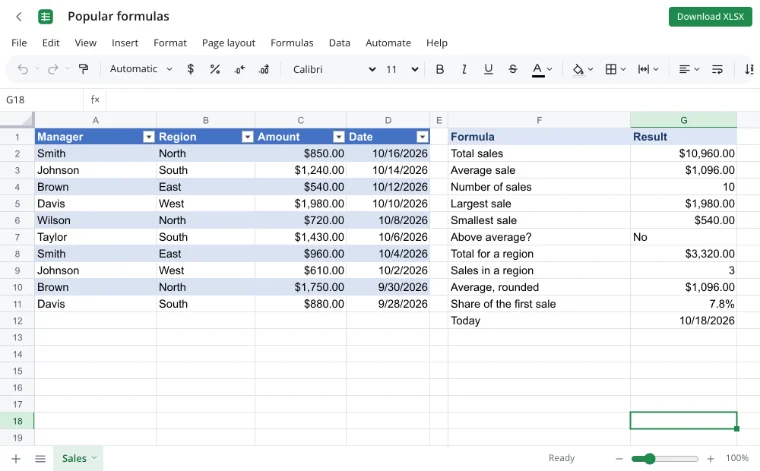
Formula bar
Select the cell with the IF result and read the formula bar: =IF(C2>AVERAGE($C$2:$C$11),“above average”,“below average”). The formula is read left to right, and commas separate the arguments.
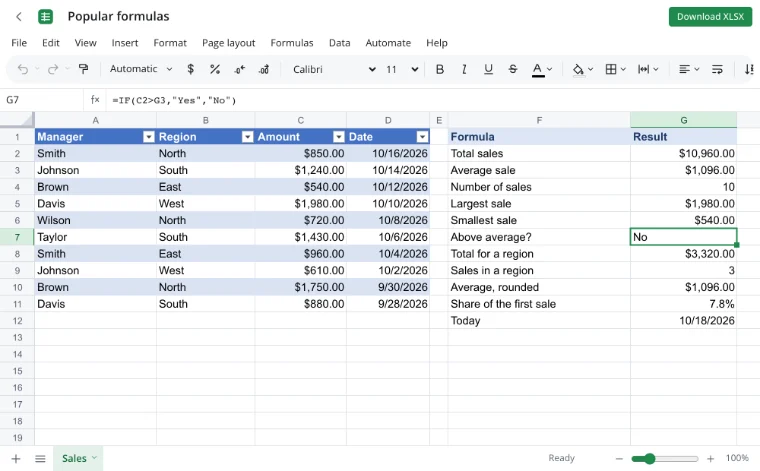
Autocomplete
In an empty cell, type =SUM and a list of functions appears: SUM, SUMPRODUCT, SUMIF, SUMIFS and more. Pick one with the arrow keys and press Tab to insert the name and see its arguments.
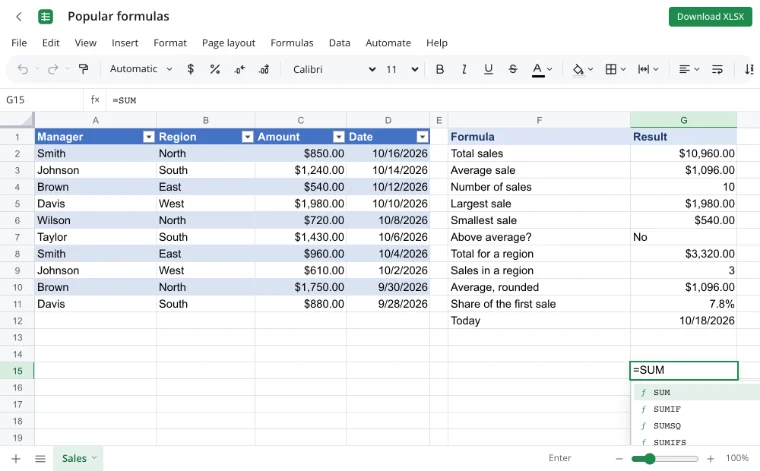
Formulas ▸ Insert function
If you do not know the name, open “Formulas ▸ Insert function”: search, categories and a description of each argument are there. “Evaluate formula” then walks through a long formula step by step.
Use cases
- Payroll: gross pay, deductions and a total by department with SUMIF.
- Invoices to clients: line totals, tax and a rounded amount due.
- E-commerce: revenue by product and a share of the monthly total.
- A school grade sheet: averages and a pass or fail flag with IF.
- A household budget: spending by category and the percentage of income.
Spreadsheet formulas: the basics
Every formula starts with =. Then come function names, cell references, numbers and operators: =C2*1.2, =SUM(C2:C11), =IF(C2>AVERAGE($C$2:$C$11),“yes”,“no”). Press Enter to calculate.
A relative reference such as C2 shifts when you copy the formula; an absolute one such as $C$2 stays put. Press F4 with the cursor on a reference to cycle through $C$2, C$2, $C2 and C2. Named ranges from the name manager make long formulas easier to read.
Excel formulas with examples
| Task | Formula | What you get |
|---|---|---|
| Total sales | =SUM(C2:C11) | The sum of the amount column. |
| Average sale | =AVERAGE(C2:C11) | The arithmetic mean. |
| Number of rows | =COUNT(C2:C11) | How many numbers the range holds. |
| Largest and smallest | =MAX(C2:C11) and =MIN(C2:C11) | The top and bottom amounts. |
| Above average? | =IF(C2>AVERAGE($C$2:$C$11),“yes”,“no”) | A flag for every row. |
| Total by region | =SUMIF(B2:B11,“North”,C2:C11) | The total for one region only. |
| Rows by region | =COUNTIF(B2:B11,“North”) | How many sales the region has. |
| Rounded total | =ROUND(C2*1.2,0) | A 20% markup rounded to a whole number. |
| Share of a sale | =C2/SUM($C$2:$C$11) | A percentage of the grand total. |
| Today's date | =TODAY() | A date that updates when the workbook opens. |
How do I calculate percentages and discounts?
A percentage is a part divided by the whole: =C2/SUM($C$2:$C$11), with the cell formatted as a percentage. The anchored denominator keeps the grand total in place when you copy the formula down. A markup is a multiplication, such as =C2*1.2 for 20% more, and a discount is =C2*0.85 for 15% off.
Wrap money calculations in ROUND when you need whole units: =ROUND(C2*1.2,0). For a long nested formula, “Evaluate formula” shows each step and makes a wrong reference easy to spot.
Why is my formula not calculating?
- The number is stored as text: it sits on the left of the cell and sums ignore it.
- The wrong separator was used — this edition accepts the standard comma.
- The range picked up an empty row or a neighbouring column; background error checking flags it with a green corner.
- “Show formulas” is on: press Ctrl+` to bring the results back.
- A cell refers to itself, or to a cell that depends on it.
Features
| Feature | What it gives you |
|---|---|
| 560 functions | SUM, IF, VLOOKUP, XLOOKUP, LET, LAMBDA and many more. |
| Autocomplete | Functions, defined names, tables and sheets are suggested as you type. |
| “Formulas ▸ Insert function” | Search, categories and a description of every argument. |
| “AutoSum” | Alt+= inserts SUM and picks the range above the cell. |
| “Evaluate formula” | Shows a calculation step by step. |
| F4 | Cycles absolute and relative references. |
| “Show formulas” | Ctrl+` shows formulas instead of results. |
| Error checking | A green corner explains inconsistent formulas and text-like numbers. |
| Dynamic arrays | FILTER, SORT, UNIQUE and SEQUENCE spill several values from one formula. |
| LET and LAMBDA | Variables and your own functions inside a formula. |
| Name manager | Readable names instead of addresses such as C2:C11. |
| 3-D references | One formula totals the same cells across several sheets. |
Limits
- VBA macros do not run; an XLSM opens, but saving writes XLSX.
- Real-time co-editing is not available.
- Legacy XLS files and password-protected workbooks are not supported.
- On the tool page a file can be up to 100 MB.
Privacy
The workbook is opened and calculated in your browser, so payroll and invoice data stays on your device. It reaches a server only through “Save to cloud”, and cloud files are stored in the EU/US under GDPR. The finished sheet can be saved as XLSX or sent as a PDF.
On your phone
The editor works in mobile browsers on Android and iPhone, including the formula bar and argument hints. Fixing one value on a phone is quick; long formulas and wide reports are easier to check on a computer.
Frequently asked questions
Support: [email protected]
How to Excel formulas?
Start with = in the cell, then type a function name or a calculation. Add arguments in brackets, separated by commas, and press Enter. The editor suggests functions as you type and shows what each argument expects. A formula can use cell references, numbers and other functions together.
How to Excel formulas list?
Open “Formulas ▸ Insert function” to browse functions by category and search by name. Everyday formulas include SUM, AVERAGE, COUNT, MAX, MIN, IF, SUMIF, COUNTIF, ROUND and TODAY. All 560 functions are available in the editor, with a description and argument hints for each one.
How to Excel formulas percentage?
Divide the part by the whole and format the cell as a percentage: =C2/SUM($C$2:$C$11). Anchor the denominator with $ signs so it stays the same when you copy the formula down. For a markup use =C2*1.2; for a discount use =C2*0.85.
How to Excel formulas with examples?
A total is =SUM(C2:C11), an average is =AVERAGE(C2:C11), and a conditional total is =SUMIF(B2:B11,“North”,C2:C11). A flag is =IF(C2>AVERAGE($C$2:$C$11),“yes”,“no”). The live example puts these formulas beside their results, so you can change a number and watch every answer update.
How to formulas Excel spreadsheet?
Type = in a cell and build the formula from references and functions, just as in a desktop spreadsheet. Press Enter to calculate and drag the fill handle to copy it. Use F4 to lock a reference and the name manager for readable range names.
Can I use Excel formulas across sheets?
Yes. Refer to a cell on another sheet with the sheet name before the address, as in =Sheet2!C2, or total a range there with =SUM(Sheet2!C2:C11). A 3-D reference such as =SUM(Jan:Dec!C2) adds the same cell across several sheets in one formula.
Why is my formula not calculating?
The most common cause is a number stored as text, which sums ignore. Check that the cell is not formatted as text and that the range covers the right rows. “Show formulas” may be on — press Ctrl+` — and background error checking marks suspicious cells with a green corner.
Is it free? Is there a watermark?
Yes, the editor is free: every formula feature works without payment, a trial period or a watermark. No account is needed to open a workbook, write formulas and download the result. Signing in is only required to keep a workbook in the cloud.
Is it safe to upload documents?
Nothing is uploaded: the workbook is opened and calculated in your browser on your own device. Payroll, invoice and budget files therefore stay with you. A file reaches a server only through “Save to cloud”, and is then stored in the EU/US under GDPR.
More tools
VLOOKUP
Pull a price, rate or name from another table by code with a VLOOKUP formula.
Pivot table
Build a report with regions in rows, products in columns, sums and grand totals.
XLSX viewer
Open an XLSX workbook in the browser and save your edits back to the file.
CSV to Excel
Turn a CSV export into an XLSX workbook with real columns, numbers and dates.
Excel to PDF
Turn a spreadsheet into a print-ready PDF with its layout, charts and headers.
Household budget template
A free household budget spreadsheet: income and expenses by category, plan versus actual, variances and totals calculated for you.
Invoice template
An invoice spreadsheet that does the math: line totals, subtotal, tax and grand total calculate automatically.
Loan calculator with amortization schedule
A loan calculator spreadsheet with a full amortization schedule: monthly payment, total interest and month-by-month balance.
Excel formulas online: sum, average, IF and percentages
Write sums, averages, conditions and percentages with autocomplete and argument hints.
Open editor