Drop down list Excel: add a choice list to a cell
A drop down list in Excel keeps entries consistent: instead of free text, a cell offers a short set of choices such as an order status, a country or a team member. The list is set up through data validation, and a value outside it can be blocked or merely flagged.
- Choices from a range
- Colored chips
- Free
- No sign-up
How to create a drop down list in Excel
“Dropdown lists” example
The example is an order form with a number, client, city, status, manager and amount. The status column uses colored chips, the city comes from a typed list, and the manager list reads the names in column H.
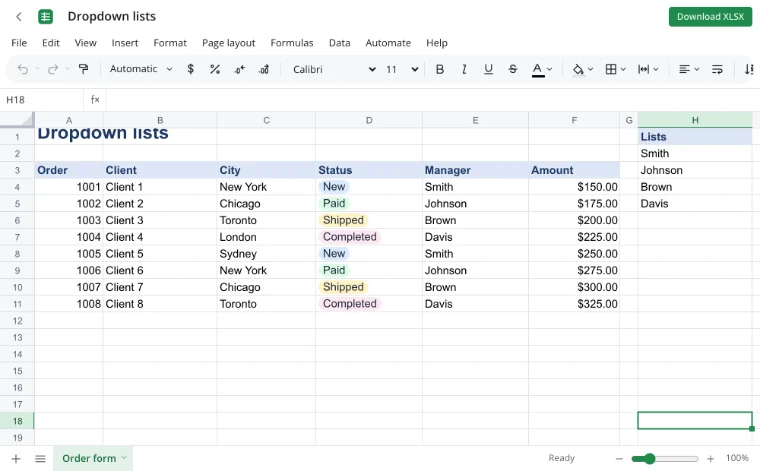
Alt+↓ in a cell
Stand in a cell and press Alt+↓ or click the arrow at its edge: the allowed values open below the cell. Pick one and it goes in; a value outside the list is refused when the rule says so.
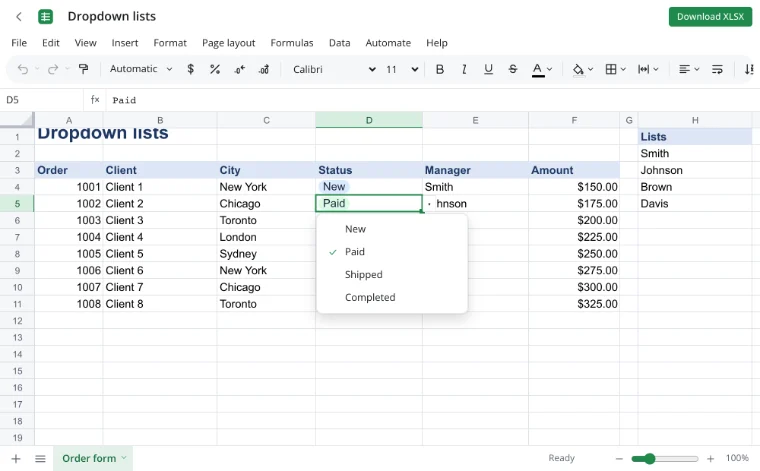
“Data ▸ Data validation”
Open “Data ▸ Data validation”, choose “List” under Allow and fill in Source: either the values themselves or a range such as =H2:H5. The list can also live on another sheet.
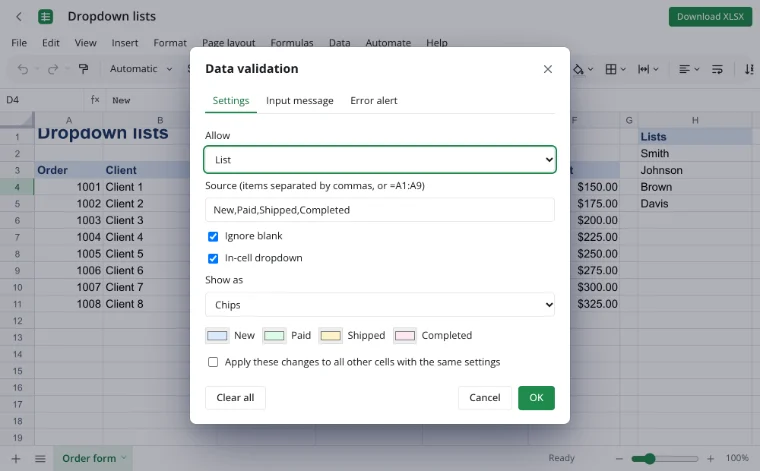
“Input message” and “Error alert”
The “Input message” tab shows a short hint when the cell is selected. The “Error alert” tab decides what happens after a wrong entry: “Stop” refuses it, “Warning” asks whether to keep it, and “Information” only reports it.
How to create a drop down list in Excel
Select the cells that should hold a choice and open “Data ▸ Data validation”. Under Allow choose “List”, then put the options in Source: type them separated by commas, or point at a range such as =H2:H5. Confirm with OK and an arrow appears at the edge of the cell.
Every cell covered by the rule gets the same list. If the rule is meant for a whole column, select the range down the sheet before opening the dialog; rows added later inside that range inherit it. The rule is stored in the workbook, so it survives saving and reopening in another spreadsheet program.
Where the choices come from
A short list can be typed straight into Source: new, paid, shipped, done. A longer one belongs in cells, and then the rule points at that range. With a range, editing the source changes the choices everywhere at once — add a value to the list block and it appears in every dropdown that reads it.
The range may sit on another sheet of the same workbook, which keeps the order form clean: the visible sheet holds the fields, and a reference sheet holds the cities, categories or team members. Keep the range free of blank cells so the list does not end early.
What the validation dialog offers
| Setting | What it does |
|---|---|
| Source | Typed values or a reference such as =A1:A9. |
| Ignore blank | Allows the cell to stay empty. |
| In-cell dropdown | Shows the arrow that opens the list. |
| Show as: Text or Chips | Plain text or a colored chip for each value. |
| Chip colors | A color per value when chips are on. |
| Input message | A hint shown while the cell is selected. |
| Error alert | Stop, Warning or Information after a wrong entry. |
| Circle invalid data | Marks cells that already break the rule. |
| Other types | Whole number, decimal, date, time, text length and a custom formula. |
Error alerts that keep entries clean
The error style decides how strict the cell is. “Stop” is the default for a controlled form: the entry is refused and the cell keeps its old value. “Warning” asks for confirmation, which suits a list that is usually right but occasionally needs an exception. “Information” accepts anything and only reports the mismatch.
Entries that were already in the cells before the rule was added are not checked automatically. “Circle invalid data” marks them, so a pasted import can be reviewed and corrected instead of silently breaking the list.
Chips and color coding
Under “Show as” the list can render as plain text or as chips. Chips give each value a color, so an order form reads at a glance: paid, shipped and done no longer look alike. Colors can be adjusted per value in the same section.
Chips handle the value itself; a rule can still color the whole row. Combining the list with conditional formatting lets a status highlight the row that needs attention, while the dropdown keeps the wording consistent.
Drop down list Excel from another sheet
Point Source at a range on another sheet, for example =Lists!A2:A9, and the dropdown reads those cells. The list stays in one place while the form stays readable. If the reference sheet is renamed, check the rule afterwards: a broken reference leaves the cell without choices.
Use cases
- Order status: new, paid, shipped, done — with a chip color for each.
- Applicant tracking: the interview stage chosen from a fixed set.
- Expense reports: a category picked from the company list.
- Address forms: country and state chosen instead of typed.
- Team schedules: a name picked from the roster on another sheet.
- Inventory counts: a location code that always matches the warehouse list.
Editing and removing a list
To change the choices, open “Data ▸ Data validation” on the same cells and edit Source. With a range, edit the cells themselves and every dropdown follows. To remove the list, open the dialog and clear the rule; the values already entered stay as ordinary text and stop being checked.
If the list should cover more cells, select the wider range first and apply the same settings. “Apply these changes to all other cells with the same settings” keeps a column consistent when only one cell was selected.
Limits
- Real-time co-editing is not available: two people cannot edit one workbook at once.
- VBA macros do not run; an XLSM file is saved as XLSX.
- The older XLS format does not open, and workbooks with an open password are not supported.
- On the tool page a file is limited to 100 MB.
Privacy
The workbook opens and is edited in your browser on your own device, so order forms, applicant data and staff lists stay with you. A file reaches a server only through “Save to cloud”, and cloud files are stored in the EU/US under GDPR. A finished form can be downloaded as a workbook or shared as a PDF.
Frequently asked questions
Support: [email protected]
How do I add a dropdown in a spreadsheet?
Select the cells, open “Data ▸ Data validation” and choose “List” under Allow. Type the choices separated by commas or point Source at a range. Confirm, and an arrow appears at the edge of the cell. Alt+↓ opens the list from the keyboard, and a value outside it can be refused.
How do I create a drop down list in Excel?
Prepare the values first: type them into Source or write them into a block of cells. Then select the target cells, open the validation dialog, choose “List” and connect the source. The same rule can cover a whole column, and it is saved inside the workbook.
How do I edit a drop down list in Excel?
Open “Data ▸ Data validation” on the cells that carry the list and change Source. If the list reads a range, edit the cells in that range instead and every dropdown updates. To change the wording of one option, edit the source value rather than the cell that displays it.
How do I add an item to a drop down list?
When the source is a range, type the new value in the next free cell and widen the reference in the rule if needed. When the values are typed into Source, add the item to that text, separated by a comma. Reopen the list and check that the new choice is there.
How do I remove a drop down list in Excel?
Select the cells, open “Data ▸ Data validation” and clear the rule. The arrow disappears, and values already entered stay as ordinary text. Clearing the rule does not change the content of the cells; it only stops the validation from limiting what can be typed next.
How do I make a drop down list from another sheet?
Put the values in a range on the other sheet and point Source at it, for example =Lists!A2:A9. The dropdown then reads those cells, and edits to the list appear in every cell that uses the rule. Keep the range free of blanks and check the reference if the sheet is renamed.
Can a drop down list allow multiple selections?
A cell holds one value from the list. The validation dialog builds a single-choice list, so several options cannot be ticked in the same cell. To record more than one choice, use separate columns or a short note beside the cell, and keep the main field on the list.
Is it free? Is there a watermark?
Yes, lists, chips, input messages and error alerts are free, with no trial period and no watermark. You can open a workbook and set up validation without an account. Signing in is needed only for cloud storage, and the workbook can be downloaded at any time.
Is it safe to upload documents?
Nothing is uploaded: the workbook opens and is edited in your browser on your own device, so order forms, applicant data and staff lists stay with you. A file reaches a server only through “Save to cloud”, and cloud files are stored in the EU/US under GDPR.
More tools
XLSX viewer
Open an XLSX workbook in the browser and save your edits back to the file.
CSV to Excel
Turn a CSV export into an XLSX workbook with real columns, numbers and dates.
Excel formulas
Write sums, averages, conditions and percentages with autocomplete and argument hints.
VLOOKUP
Pull a price, rate or name from another table by code with a VLOOKUP formula.
Conditional formatting
Color cells by value, formula or date with rules, bars and icons.
Pivot table
Build a report with regions in rows, products in columns, sums and grand totals.
Excel to PDF
Turn a spreadsheet into a print-ready PDF with its layout, charts and headers.
Charts
Build a chart from table data and format it on the sheet.
Drop down list Excel: add a choice list to a cell
Give a cell a short list of choices and reject invalid entries.
Open editor